Security Setup
OneStream's Line Item Modeling Installer allows you to have different configuration types and set up security for each using the Wizard Security Groups, ensuring secure access control and data protection. These groups define the level of access and permissions each user or user group has within the system, enabling administrators to effectively manage who can view, edit, or approve data. By structuring user access rights through the Security Groups, organizations can maintain control over sensitive information and prevent unauthorized alterations. This feature enhances the security of the planning process and fosters accountability and proper data management within the organization. It is an essential component for businesses looking to safeguard their data while promoting a collaborative planning environment. See Security to adjust Security groups.
NOTE: Line Item Modeling enforces nested security, evaluating parent-level security first to allow access before child-level security is applied.
NOTE: The Manage Transfers action is only available in the Workforce Planning configuration.
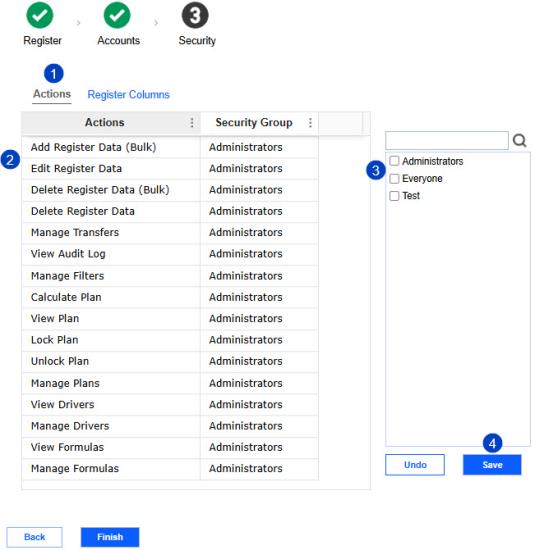
To set security groups for Actions, follow the legend and corresponding instructions:
-
Click the Actions button.
-
Select a row.
-
Select security groups.
TIP: You can search for a security group by typing in a security group name and clicking the Search button.
-
Click the Save button. You can revert your security group selections by clicking the Undo button.
IMPORTANT: You need to click the Save button after each Action security group selection.
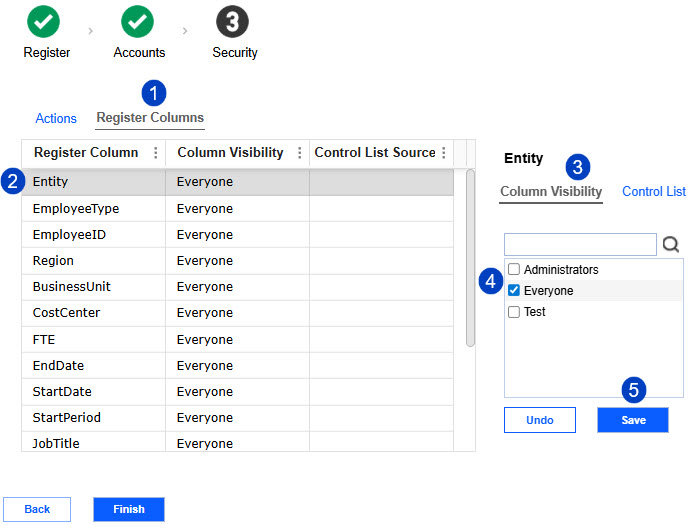
To set the security groups for Register Columns, follow the legend and corresponding instructions below:
-
Click the Register Columns tab.
-
Select a row.
-
Click the Column Visibility tab.
-
Select security groups.
TIP: You can search for a security group by typing in a security group name and clicking the search button.
-
Click the Save button. You can revert your security group selections by clicking the Undo button.
IMPORTANT: You need to click the Save button after each Action security group selection.
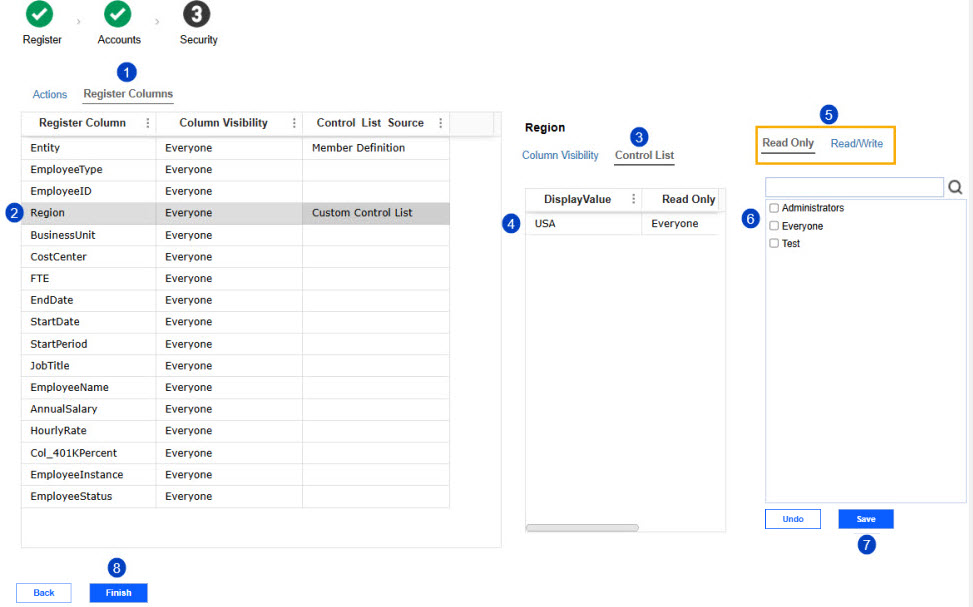
To set the security groups for control list values, follow the legend and corresponding instructions:
-
Click the Register Columns tab.
-
Select a row with control list values.
-
Click the Control List tab.
-
Select a row.
-
Click the Read Only tab to set read-only permissions or click the Read/Write tab to set read/write permissions.
-
Select security groups.
TIP: You can search for a security group by typing in a security group name and clicking the search button.
-
Click the Save button.
IMPORTANT: You need to click the Save button after each Action security group selection.
-
Click the Finish button.
NOTE: Security can only be applied to member definitions or custom control lists but not to parameters.
The following table details the actions you can set security groups for.
NOTE: OneStream Administrators will not automatically have rights to the inner workings of this solution. If you have Administrators responsible for any of the Actions listed below, you must assign the Administrators group to the action or include those individuals to the security groups assigned. This also applies to row level security on the Entity, UD's or Control List items.
| Actions | User Function |
|---|---|
| Add Register Data (Bulk) | User can import Register bulk data. |
| Edit Register Data | User can edit Register data. Edits include updating a row that exists and adding a row. |
| Delete Register Data (Bulk) | User can delete Register bulk data. |
| Delete Register Data | User can delete Register data. This permission allows specific users to delete an existing row. If a user has permission to Delete Register Data, they also have Edit Register Data permission. |
| Manage Transfers | User can execute transfers and is not data dependent, meaning this role is not tied to column or member security. The user assigned to this action can apply the execution of transfers globally within any intersection of data. This action is only available in the Workforce Planning configuration. |
| View Audit Log | User can view the Audit Log. |
| Manage Filters | User can create, edit, copy or delete Register filters. |
| Calculate Plan | User can calculate plan data. |
| View Plan | User can view plan data. |
| Lock Plan | User can lock plans. |
| Unlock Plan | User can unlock plans. |
| Manage Plans | User can create, edit, copy, calculate or delete plans. |
| View Drivers | User can view Global Drivers, Lookup Drivers and Cube Drivers. |
| Manage Drivers | User can import Global Drivers, Lookup Drivers and Cube Drivers. |
| View Formulas | User can view formulas. |
| Manage Formulas | User can create, edit, copy or delete formulas. |


